
Carry-Over
On this page
Carry-Over fills in the previous reading of every line of next month's billing file, so billing starts from the right number. Only that column is changed; everything else in the file stays exactly the same.
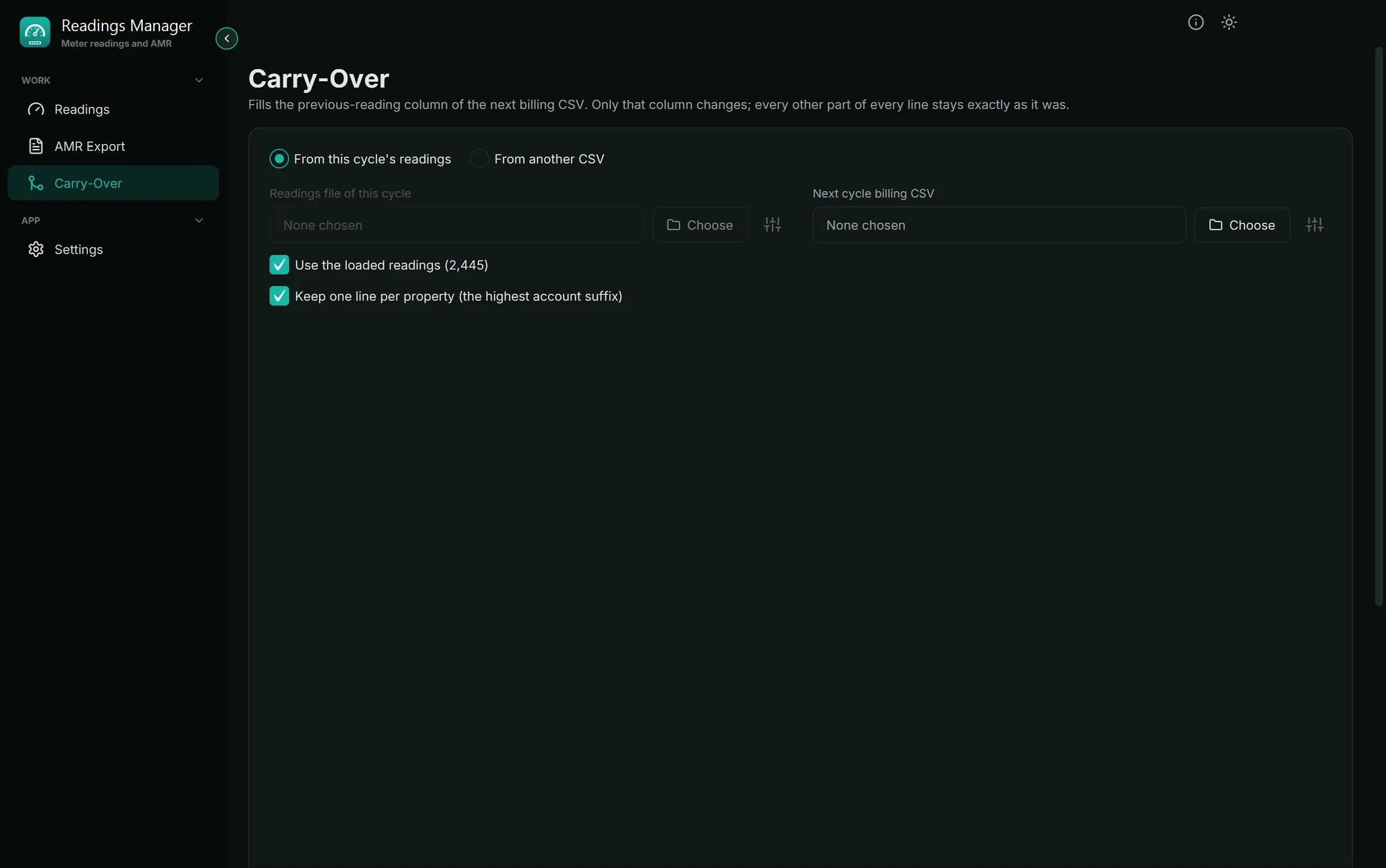
From this cycle's readings (most common)
Click From this cycle's readings at the top.
Tick Use the loaded readings to use the readings on the Readings page. Or untick it and click Choose to pick the readings file of this cycle.
Next to Next cycle billing CSV, click Choose and pick next month's billing file.
If the app cannot tell the columns of a file by itself, the Choose the columns panel opens. Pick the account column and the reading column, and tick The first line after them holds the column names if the file starts with column names (open it in Notepad to see). Then click Use these columns. Your choice is remembered for next month.
Leave Keep one line per property ticked, unless your supervisor says otherwise. It removes older lines of the same property and keeps the newest account.
Click Carry over, choose where to save the filled file, and click Save.
Lines are matched by the first part of the account number (for example 073097 of 073097-010), because next month's file may already have the next account number. A line with no match gets 000000000.
From another CSV
Use this when the previous readings come from another CSV file with the same layout. Lines are matched by the full account number. A line without a match keeps its value (or gets 0 when it had none). If the app asks, pick the account column and the previous-reading column of each file.
Check or change the columns
Click the columns button (the icon with three sliders, next to Choose) beside a file to see or change which column is which. The line under the file says what was chosen.
Only the previous-reading column of the billing file is changed, and the file keeps its own separator (comma, semicolon...).
Title lines skipped at the top and the line of column names are not written to the filled file.
The billing file must be a CSV file. A JSON file can be used for the readings, not for the billing file.
The result
The green message says how many lines were written, how many were filled, how many had no match (set to 0), and how many older duplicates were removed.
Tip: Open the new file in Excel or Notepad and look at a few lines before you send it to billing.
If something goes wrong
What you see | What to do |
|---|---|
| The chosen file is empty or not the right one. Choose the right file, and check its columns with the columns button. |
Almost every line says without a match. | The wrong file was chosen, or the wrong account column. Click the columns button and check the account column. |
The first customer of the file is missing from the result. | The panel said the first line holds column names, but the file has none. Click the columns button, untick The first line after them holds the column names and try again. |
| The billing file must be a CSV file. Choose next month's billing CSV. |
| Click the columns button and pick the missing column. |
| The output file is open in Excel. Close it there and try again. |
Still stuck? See Troubleshooting, or open a support ticket.
Last updated November 17, 2026