
Load a cycle
On this page
To work on a cycle, first load its readings. There are three ways. Each one replaces the readings already on screen, so save first if you changed something.
Which file?
File | What it is | Ends in |
|---|---|---|
Import CSV | The file from the billing system that starts a cycle. It lists the meters to read, with last month's reading. It has no current readings yet. |
|
Readings file | A file saved by Readings Manager (Save, Export to JSON, or the backup made by Post online). It has the current readings, dates, notes and status. |
|
Any other CSV or JSON file | A list of readings from another program, or a spreadsheet saved as CSV. The app asks once which column holds what (see below). |
|
Open a file
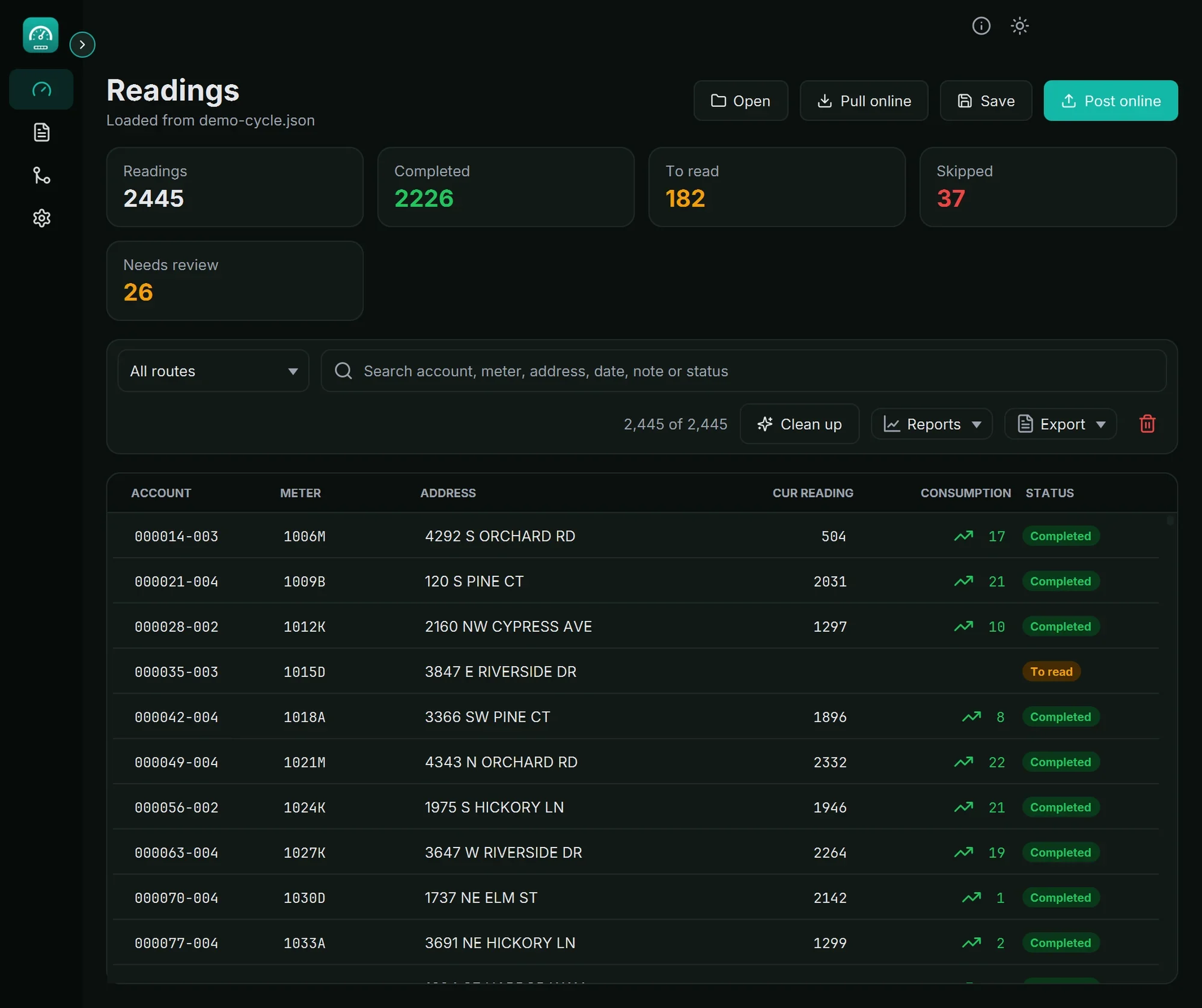
On the Readings page, click Open (top right).
Find the file in the window that opens, click it, then click Open.
Wait a moment. A green message says how many readings were opened, and they appear in the table.
Even quicker: drag the file from a folder and drop it anywhere on the Readings page.
Open a file from another program
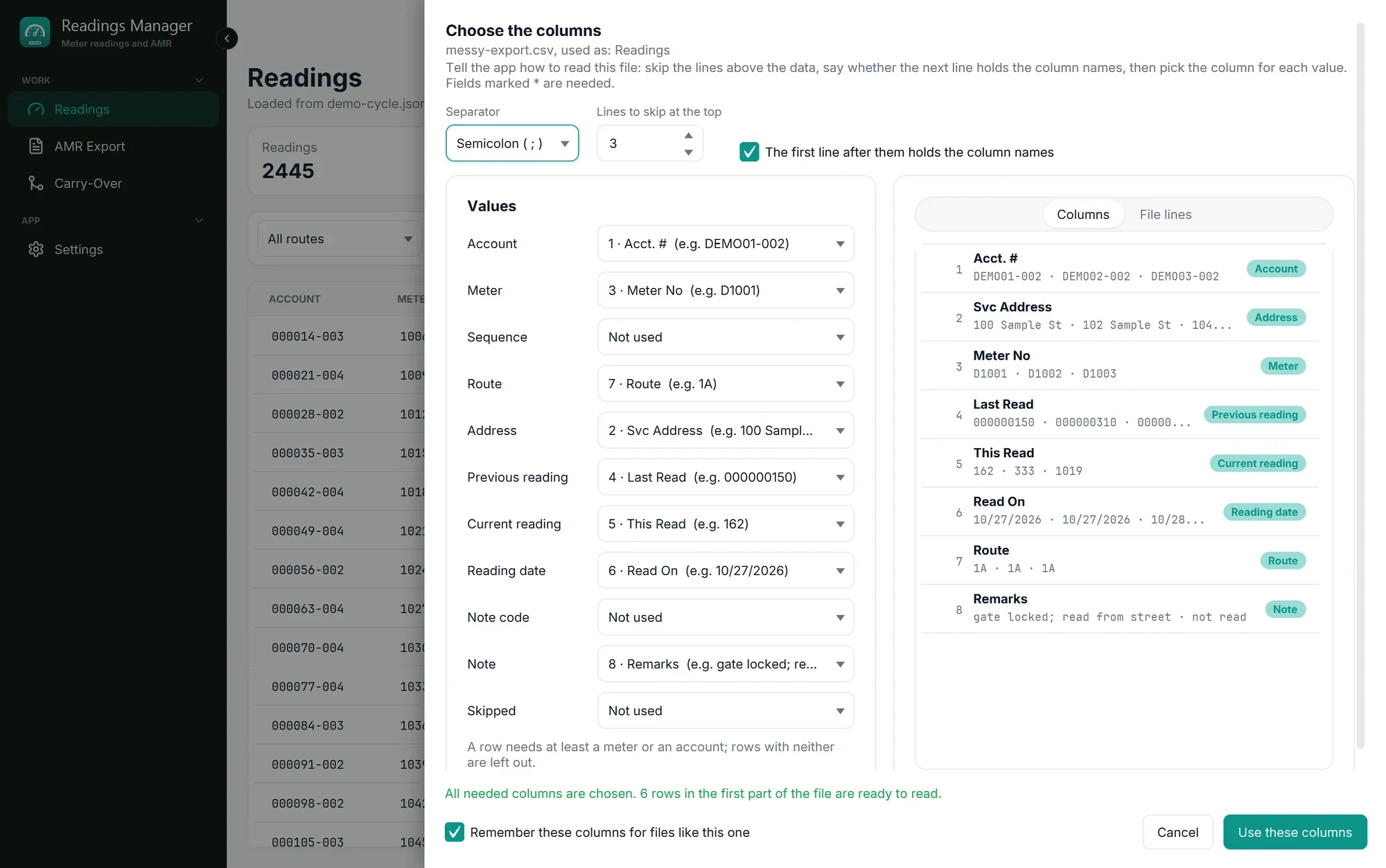
Since version 2.0.1 you can open almost any list of readings: a file from another program, a report saved from Excel as CSV, or a JSON file. Such a file may have title lines at the top, columns in a different order, or semicolons instead of commas. The app cannot guess all of that, so the first time it asks you, in the Choose the columns panel.
Click Open and choose the file, as above.
If the app already knows this kind of file, it opens at once. If not, the Choose the columns panel opens on the right.
Separator: the sign between the values on a line (comma, semicolon, tab or pipe
|). The app chooses it by itself; change it only if the columns on the right look wrong.Lines to skip at the top: how many lines come before the data, such as a report title or a date. Click File lines on the right to see the first lines of the file as they are.
Tick The first line after them holds the column names if that line has names such as Meter No or Account, and not a customer.
Under Values, pick the column for each value. Each choice shows the column's number, its name and a first value, for example 3 · Meter No (e.g. D1001). Most columns are already chosen from their names; check them. Values you do not have stay Not used.
Look at the line at the bottom. When it is green (All needed columns are chosen), click Use these columns.
Values marked * are needed. For readings, each line needs at least a meter or an account; lines with neither are left out.
Remembered for next time. Leave Remember these columns for files like this one ticked. Next month's file with the same columns then opens without the panel.
Check the message. After opening, the green message also says how many lines were left out (no meter and no account) and how many values were not a number or a date. If those numbers look high, click Change columns in the message and check your choices.
Tip: The same panel is used on the AMR Export and Carry-Over pages.
Pull the readings from the server
Pull online gets the readings of this cycle from the readings server, as the meter readers entered them.
Click Pull online.
The app asks if you want to replace the loaded readings. Click Pull and replace.
Wait a few seconds. A green message says how many readings came in.
If some readings are lower than last month, the message says how many and has a Review button that shows them. See Reports and review.
Tip: Pull online needs the internet and the API address in Settings.
Repeated readings
If the file has the same meter or the same account more than once, the Clean up panel opens by itself. See Clean up repeated readings.
Empty the table
The red bin button at the end of the toolbar removes all readings from the screen (after asking). Your files and the server are not changed.
If something goes wrong
What you see | What to do |
|---|---|
| You chose a different kind of file. Choose a .csv, .json or .txt file. |
| A needed value has no column yet. Pick its column under Values. |
| Too many lines are skipped, or the separator is wrong. Lower Lines to skip at the top and look at File lines. |
Many lines left out, or many values not a number or a date | A column was chosen wrongly. Click Change columns in the message and check them. |
| This .json file was not made by Readings Manager. Open a file made by Save or Export to JSON. |
| One line of the import CSV is incomplete. The message names the line. Ask whoever made the file to correct it. |
| The file is open in another program (often Excel) or was moved. Close it there and try again. |
| Enter the API address in Settings (ask the IT staff for it). |
| Check the internet connection. If it works, check the API address in Settings. On a slow connection, raise the Connect timeout in Settings (for example to 30) and try again. |
| The API key is wrong, or an administrator made a new one on the readings web site. Paste the current key in Settings > API key, click Save and try again. |
| Copy the new address from the message into Settings > API address and click Save. |
Another job is still running | Wait for the current job to finish (watch the message at the top of the page), then try again. |
Still stuck? See Troubleshooting, or open a support ticket.
Last updated November 17, 2026