
Settings
On this page
Click Settings in the left menu. Scroll down to see all the sections.
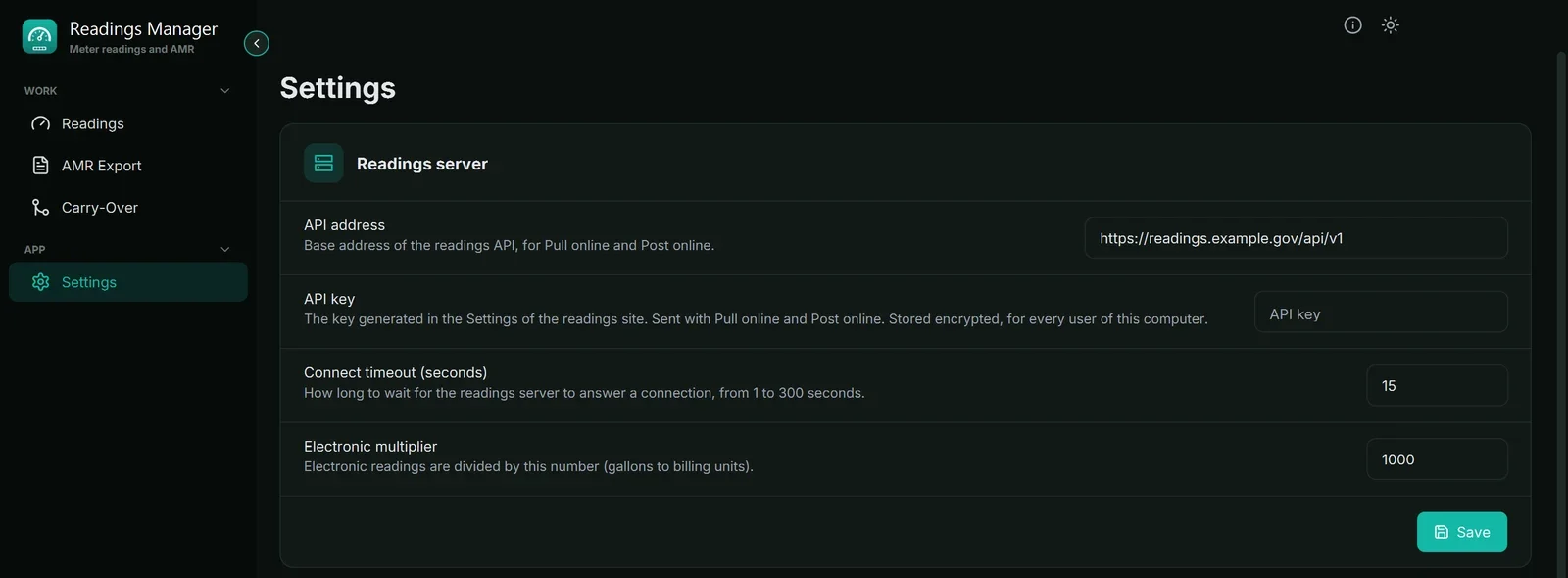
Readings server
API address: the address of the readings server, used by Pull online and Post online. The IT staff will give it to you.
API key: the secret code that lets the app use the readings server. An administrator makes it on the readings web site (in its Settings). It starts with
flc_followed by many letters and numbers. Copy it and paste it here (Ctrl+V). The app sends it with every Pull online and Post online. It is saved in a secret (encrypted) form and the box shows it only as dots.Connect timeout (seconds): how long the app waits for the readings server to answer when it connects. The usual value is 15. Make it bigger (for example 30 or 60) only if Pull online or Post online often fails with
RM-2004on a slow connection. Any whole number from 1 to 300.Electronic multiplier: electronic readings are divided by this number (usually 1000).
Click Save under these fields to keep your changes. A green message says Settings saved. Nothing is saved while one of the numbers is out of range: a red message says which one.
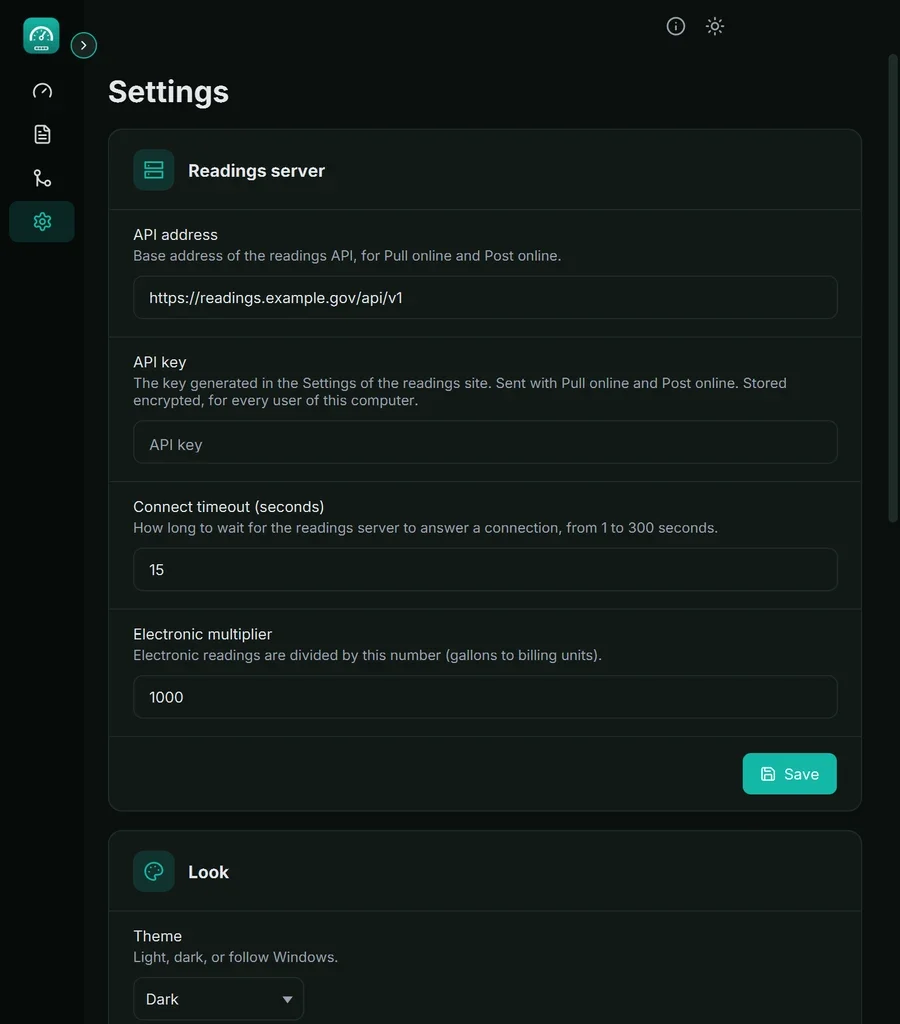
Important: these settings are kept for everyone who uses this computer. If another person signs in to Windows with their own account and opens Readings Manager, they see the same address, key and timeout. A change one person saves applies to all.
When the API key changes
An administrator can make a new key on the readings web site at any time, for example if the old one was shared by mistake. The old key stops working at once.
Get the new key from the administrator, or copy it from the readings web site.
In Readings Manager click Settings.
Click in the API key box, press Ctrl+A to select what is there, then Ctrl+V to paste the new key.
Click Save.
Try Pull online. If the readings arrive, the new key works.
Look
Theme: Light, Dark, or Follow Windows.
Accent color: the colour of buttons and highlights. Nine colours to choose from.
These change at once; there is nothing to save.
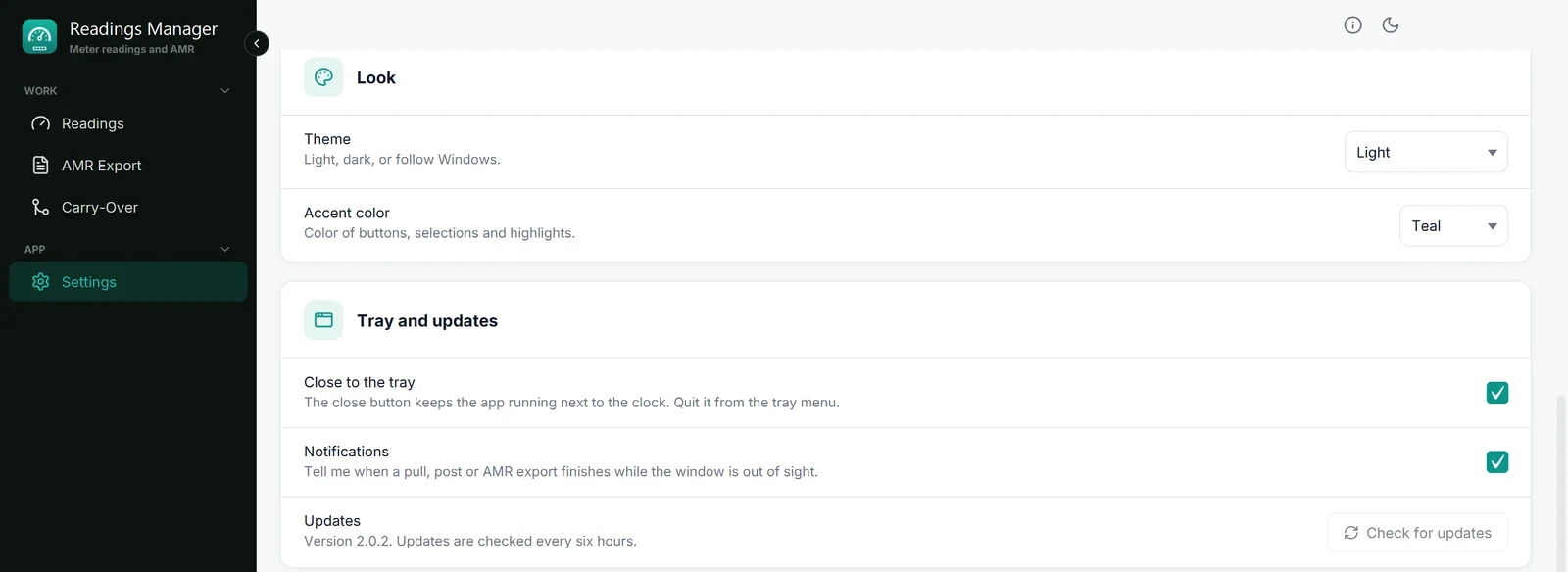
Tray and updates
Close to the tray: when ticked, the window's close button (X) keeps the app running next to the clock. Quit it from the tray icon's menu.
Notifications: when ticked, Windows tells you when a pull, a post or an AMR export finishes while the window is hidden.
Updates: shows the version you have. Check for updates looks for a new one now. See Updates.
Licence
The state and details of the licence, Check now and Remove from this computer. See Your licence.
About
The version of the app, and links:
Online help: this guide.
What's new: the changes of each version.
User agreement: the terms you accepted on the first start.
The XSSIT web site.
Open the data folder: the folder with the settings and the licence, shared by everyone on this computer.
Open the log folder: the folder with your log file, readings.log. Support may ask you to attach it to a ticket.

If something goes wrong
What you see | What to do |
|---|---|
The multiplier must be a whole number from 1 to 1000000. | Type a whole number, such as 1000, with no letters, spaces or decimals. |
Could not save the settings | Close the app completely and open it again, then save once more. If it keeps failing, tell the IT staff. |
The connect timeout must be a whole number of seconds from 1 to 300. | Type a whole number, such as 15, with no letters, spaces or decimals. |
The API key box shows only dots. | That is normal: the key is hidden for safety. To change it, see When the API key changes above. |
| The key is wrong, or a new one was made on the readings web site. Paste the current key and Save. |
Pull online or Post online takes a long time and then says | Check the internet. On a slow connection, raise the Connect timeout (for example to 30) and Save. |
Pull online or Post online still fails after saving. | Check the API address for typing mistakes; it starts with |
Still stuck? See Troubleshooting, or open a support ticket.
Last updated November 17, 2026